Enigma OS Documentation
Fully-configurable in-world control surface for VRChat
Project maintained by Cozen-Official Hosted on GitHub Pages — Theme by mattgraham
Actions Overview
Buttons can be configured to do any number of actions. Toggle actions are stateful, with on/off states, while Command actions perform an action without tracking an on/off state. Selection actions allow making color selectors, and preset actions are for the presets system. Display actions display a value on the button, and System actions handle Enigma OS functions like navigation.
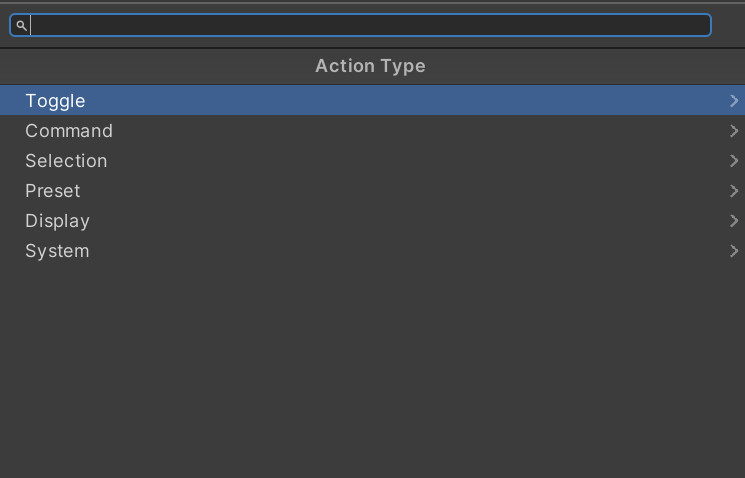
Toggle Actions
Toggle Autochange Group: This toggles auto-changing on/off for the specified auto-changing group. See Advanced Features.
Toggle Material: This swaps the material on the specified renderer. If multiple materials exist on the renderer, a material index field will be shown. The default field controls which material is applied on deactivation, and is auto-populated from the renderer’s current material when the field is empty.
Toggle Object: This toggles the active state of the specified GameObject. On activation the GameObject is enabled, and on deactivation it’s disabled.
Toggle Shader: This toggles the active state of a Screen Shader template instance, used for the multiple-material screen shader approach where each button activates a different shader. See Screen Shader Setup.
Toggle Shader Keyword: This enables the specified shader keyword on the chosen renderer’s material on activation, and disables it on deactivation. Most shader sets manage keywords automatically through their property toggles, so you usually don’t need this action for the officially supported shader sets.
Toggle Shader Property: This sets a shader property on the specified renderer’s material to the active value, and reverts it to the default value on deactivation. Supports Float, Color, and Vector property types. The “Also Set Effect Toggle” option auto-enables the effect’s master toggle keyword, which is required for most screen shader sets. Use the Search button to pick a property from the assigned material.
Toggle Skybox: This swaps the scene’s skybox to the specified material on activation, and reverts to the scene’s starting skybox on deactivation. See the Skybox Folder template for an example.
Toggle Transform: This swaps the position, rotation, and/or scale of the specified Transform between an active and default state. Each axis can be enabled independently, and the action can target world or local space.
Toggle Udon Variable: This sets a public field on the specified UdonSharpBehaviour to the active value on activation, and to the default value on deactivation. Supports Float, Bool, Int, and String variable types. Use the Search button to pick a variable from the target behaviour.
Command Actions
Apply Material: This applies the specified material to the renderer slot on press. Unlike Toggle Material, there is no off state — the swap is one-shot and persists until something else changes the material.
Apply Skybox: This swaps the scene’s skybox to the specified material on press. Like Apply Material, the swap is one-shot with no automatic restore.
Set Autochange Group State: This forces the specified auto-changing group on or off on press. Unlike Toggle Autochange Group, this always sets the state to a fixed value rather than flipping between on and off.
Set Object State: This forces a GameObject to a specific active state on press. Useful for “always-on” or “always-off” buttons.
Set Shader Keyword: This forces a shader keyword to a specific state on press. The target state determines whether the keyword is enabled or disabled.
Set Shader Property: This writes a value to a shader property on press. With “Use Step” enabled, the value increments by the configured Step Amount on each press, optionally wrapping or clamping at the configured min/max bounds — useful for cycling through discrete property values like the AudioLink band selectors in the included templates.
Set Transform: This sets a Transform’s position, rotation, and/or scale to a fixed value on press. Each axis can be enabled independently, and the action can target world or local space.
Set Udon Variable: This writes a fixed value to a public field on the specified UdonSharpBehaviour on press. Supports Float, Bool, Int, and String variable types. With “Use Step” enabled, the value steps each press like Set Shader Property.
Teleport Object: This teleports a GameObject to the specified destination Transform on press. Position and optionally rotation are copied from the destination.
Teleport Player: This teleports the local player to the specified destination Transform on press. Position and optionally rotation are applied to the player.
Trigger Udon Event: This calls a public method on the specified UdonSharpBehaviour on press. Use the Search button to pick from the target’s available public methods.
Selection Actions
Next Color: Within a Color Palette, this advances the pending color to the next palette entry on press. Pair with a Set Color button using the same Color Palette Name to apply the pending color to a target.
Next Variant: Within a Variant Group, this advances the pending variant to the next item on press. Pair with a Set Variant button using the same Variant Group Name to apply the pending variant.
Previous Color: Like Next Color, but moves backward through the palette.
Previous Variant: Like Next Variant, but moves backward through the variant list.
Set Color: Owns the color palette and applies the pending color to the target renderer on press. Configure the palette colors directly on this action.
Set Variant: Owns the variant list and applies the pending variant on press. Each variant maps to a different value on a configured shader property.
Preset Actions
See Using Presets.
Display Actions
Display Autochange Group: Displays the current state of the named auto-changing group on the button label. Read-only — pressing does nothing.
Display Color Palette: Displays the currently applied color from a Color Palette as the button’s tint. Pair with a Set Color action elsewhere using the same Color Palette Name.
Display Controller: Displays a value sourced from the controller itself, such as the current folder name. Read-only.
Display Shader Property: Reads a shader property from a material and displays its current value on the button label. Useful for showing the current value of a property driven by other buttons or faders.
Display Stat: Displays a VRChat world stat (visit count, favorite count, etc.) on the button label. Some metrics require the world’s API URL to be configured. Read-only.
Display Udon Variable: Reads a public variable on a UdonSharpBehaviour and displays its current value on the button label. Use the Search button to pick the variable from the target.
Display Variant Group: Displays the currently applied variant name from a Variant Group on the button label. Pair with a Set Variant entry using the same Variant Group Name.
System Actions
Display Folder Name: Displays the current folder’s name on the button label. Read-only.
Display Page Number: Displays the current page number on the button label. Read-only.
Go To Fader Page: Navigates to the specified fader page on press. See Using Faders.
Go To Folder: Navigates to the specified folder on press.
Go To Page: Navigates to the specified page index within the current folder on press.
Next Fader Page: Advances to the next fader page on press. See Using Faders.
Next Folder: Advances to the next folder on press.
Next Page: Advances to the next page in the current folder on press.
Previous Fader Page: Goes back to the previous fader page on press.
Previous Folder: Goes back to the previous folder on press.
Previous Page: Goes back to the previous page in the current folder on press.
Reset: Resets all entry states to their on-by-default values, all step values to defaults, and all color/variant selections to defaults. Useful for a “reset all” button.
Set Fader Mode: Switches between hand-collider and VRC pickup control modes for fader manipulation. Useful for desktop users or anyone who prefers grabbing faders rather than sliding them with hand colliders.
Set Whitelist: Forces the controller’s whitelist on or off on press. Whitelist must be enabled in the EnigmaController inspector for this action to function. See Whitelist (Access Control).
Toggle Whitelist: Toggles the controller’s whitelist between two states. The Default field is the value the whitelist returns to when the button deactivates; the active state writes the inverse. Whitelist must be enabled in the EnigmaController inspector for this action to function. See Whitelist (Access Control).
| ← Screen Shader Setup | Using Faders → |