Enigma OS Documentation
Fully-configurable in-world control surface for VRChat
Project maintained by Cozen-Official Hosted on GitHub Pages — Theme by mattgraham
Using Faders
There are two types of faders within Enigma OS, static faders and dynamic faders. Think of each fader on the Mixer prefab as a “slot”. Static faders are assigned to a slot permanently, while dynamic faders are only assigned to a slot when their associated button is enabled. Faders can control both float values and color values (hue shift), and can target shader properties (Material), Udon variables (Udon) or UI Slider components. You can also optionally target the scene skybox.
Faders can be controlled either by hand colliders (the tip of the index finger on each hand), or by normal VRC Pickup, allowing manipulation in the editor and in Desktop mode. The “Set Fader Mode” action controls this.
To assign a static fader, use the Faders foldout. The “+” button allows targeting multiple renderers or udon behaviors, letting a single fader control multiple VRSL lights for example.
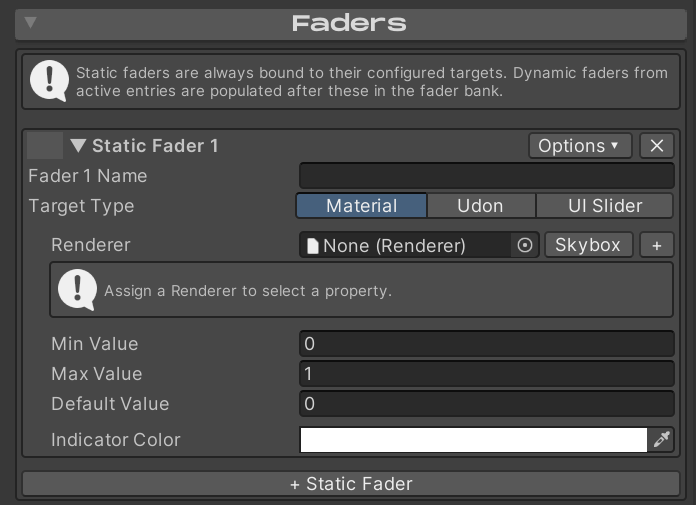
Min Value is the bottom position of the fader, while Max value is the top position of the fader. Max Value does not need to be greater than the Min Value. Default Value is the position the fader starts at when assigned.
If at any point you have more faders assigned than available slots, use the fader paging buttons to switch pages. Enigma OS includes several actions for fader navigation, so you can switch these to a previous / next fader page button if you prefer, letting you use the rest of the buttons as hotkeys for whatever actions you desire.
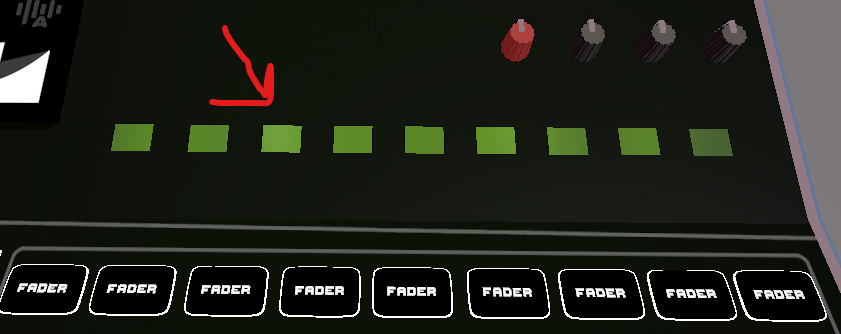
In the Options menu you can set “Always Visible” on a fader to pin that fader to stay visible across all fader pages. Keep in mind that this reduces the total number of assignable slots, if you set all 9 static faders to “Always Visible”, there will be no remaining slots for dynamic faders to be assigned.
To configure dynamic faders, enable “Assign Fader When Active” in the Options menu of a button. You should see the “Fader” tag appear, and a new button “+ Add Dynamic Fader”.
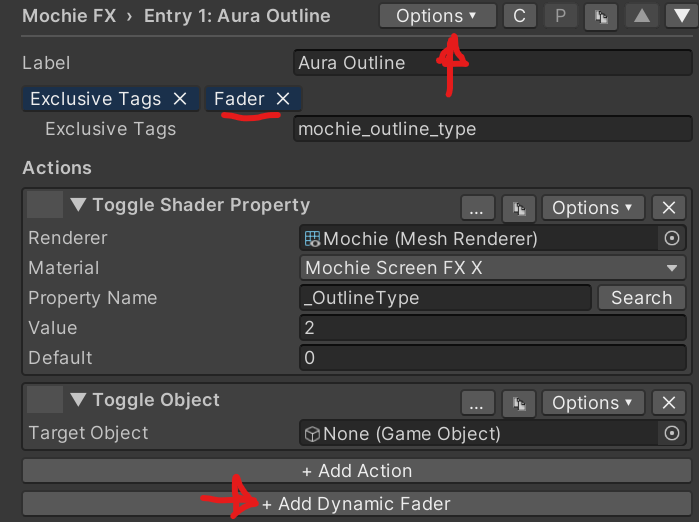
Clicking that button makes a dynamic fader that gets assigned when that button is in the “on” state. A button can assign multiple dynamic faders.
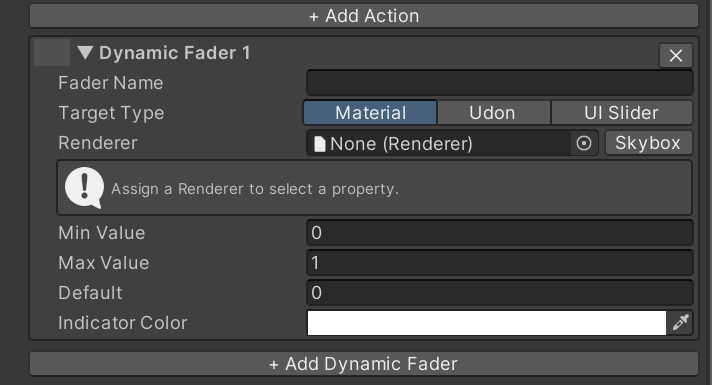
You can also make a dynamic fader by clicking “Options” on an action within a button and clicking “Fader Link”.
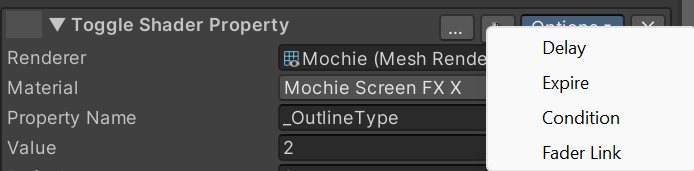
The benefit to this is that the newly created dynamic fader will inherit the renderer set in the action, saving time. If you change the renderer in the action, it will also change it in the linked fader. You can tell which faders are linked to which action as they will share a unique color in the drag box (green in the example below).
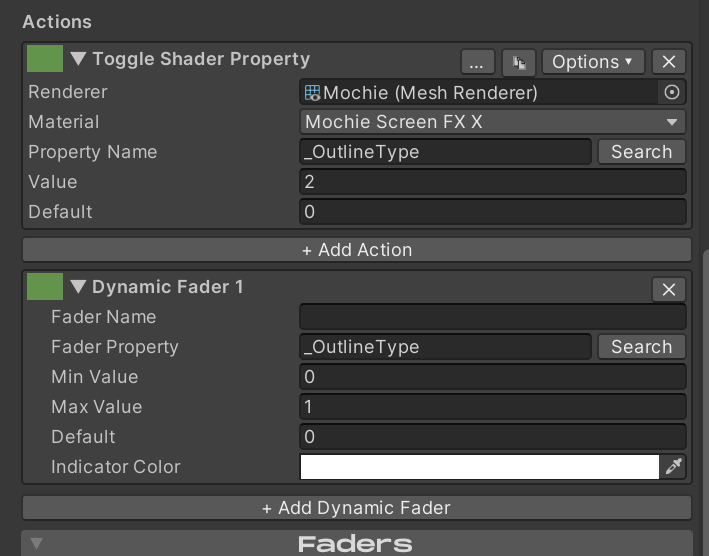
Dynamic faders will remember their positions when re-assigned. So if you disable a button and then enable it again, the position will snap to the position it was before being deactivated, not the default position.
Static faders are always assigned to the first slots on the controller, then any active dynamic faders.
Targeting VRSL Lights
VRSL stage lights drive their color through a Udon variable, not a material property. The fixture’s script writes _Emission to its meshes every frame, so a fader that targets the material directly gets overwritten right away. Use the Udon path instead.
In the Faders foldout, drop the VRSL fixture’s root GameObject into the Behaviour field, set the Property Type to Color, and set the Udon Variable Name to lightColorTint. The “+” button lets you add more fixtures to the same fader to drive a whole rig.
The same setup works for the VRSL GI variants — no extra configuration needed for the GI bounce color to follow.
| ← Actions Overview | Using Presets → |