Enigma OS Documentation
Fully-configurable in-world control surface for VRChat
Project maintained by Cozen-Official Hosted on GitHub Pages — Theme by mattgraham
Screen Shader Setup
There are two ways to go about using screen shaders with Enigma OS, using one material/renderer or using multiple materials and a templated renderer.
Multiple Material Setup
If you already have a collection of materials with separate effects
configured on each material, you can use the multiple materials
approach, which uses the “Toggle Shader” action. The easiest way to do
this is to import the “Screen Shaders” template.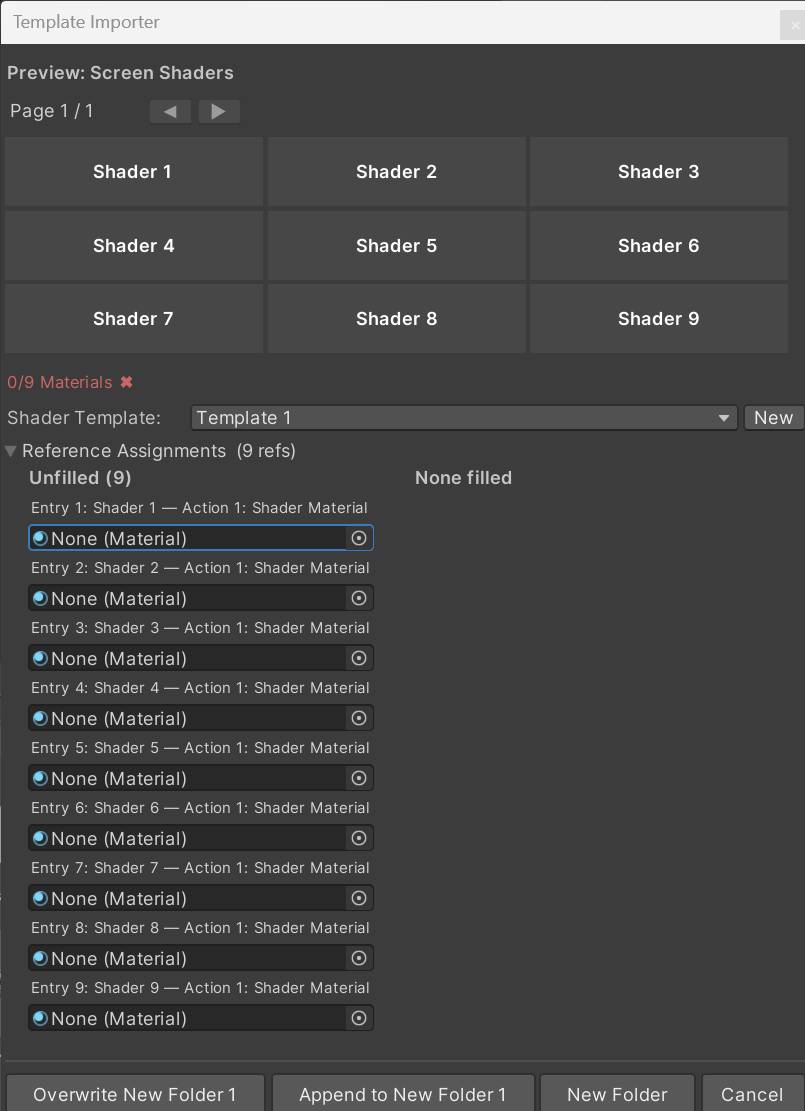
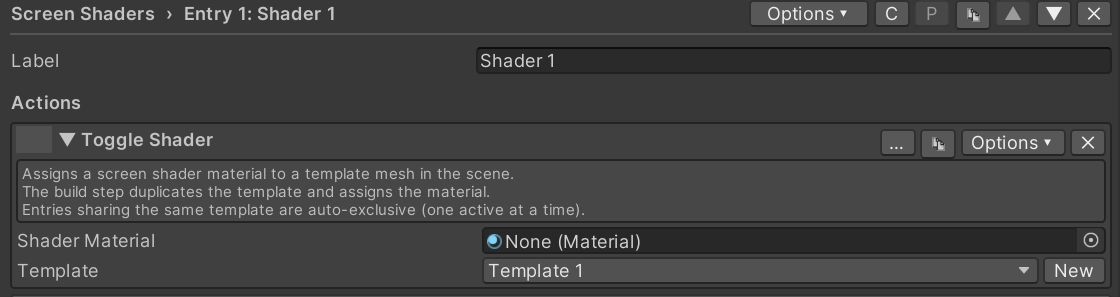
Assign each screen shader material in Reference Assignments. If you have more, import again and choose the Append option to add another page, or simply duplicate the button in the button grid. Click the “New” button to add a shader renderer to the scene. This is an editor-only cube with no collider. Size the cube around the area you want effects to be visible. Enigma OS will handle duplicating this template for each material, and each button toggles the active state of the duplicated renderer. If you’re using more than one controller or have multiple rooms that you want separate effects in, you can make separate templates. Choose the right one in the template dropdown of the importer, or in the “Toggle Shader” action.
Single Material Setup
You can also control screen shaders using just a single material / renderer. This is the approach used by the shader set templates. For quick setup, import the template for the shader set you want to use. See Template System. The renderer you choose should be a cube (or sphere, but cube is recommended) and should be sized around the area you want the effects to render in. Remember to remove the default collider from this object. Assign a material using the chosen shader set to that renderer. You do not need to enable the effects manually within the material or lock the material! Enigma OS handles configuring the material and locking it based on what is configured in the Enigma OS editor.
To make your own folder using the single material approach, add a “Toggle Shader Property” action on any button, and assign your renderer. Then, choose which property you want the button to toggle.
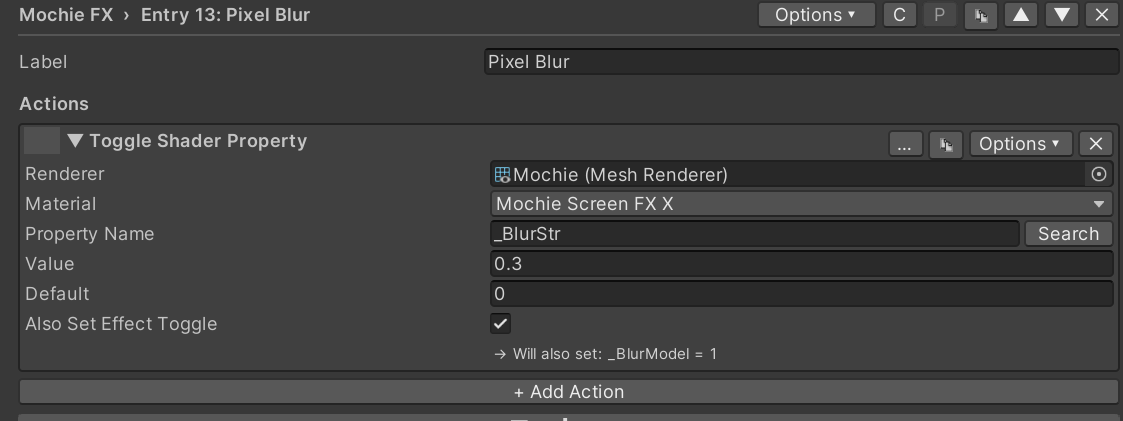
The value field is the value that property will be set to when the button is toggled. The default field is the “off” state of the toggle, and will be set on scene start.
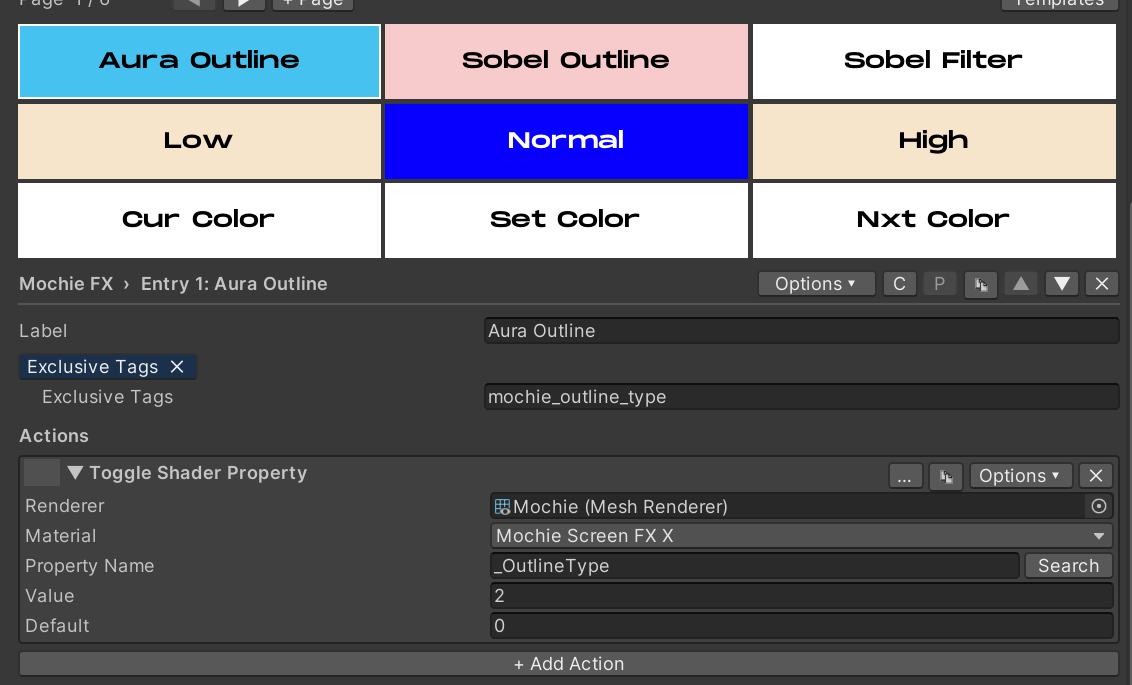
You can also customize your shader folder even more, with exclusivity, auto-changing, value displays, step buttons, color selectors, delays, trigger conditions, and custom button colors. See Advanced Features to learn how to use these, or take a look at the shader set templates for examples.
You can also have buttons assign faders to the fader bank when enabled, see Using Faders.
Additional Notes:
You should place your templates/renderers under a parent object called “Shaders” or something similar, then place a user-facing toggle in your world to disable/enable that parent object locally. This allows players to turn on/off the screen effects for performance or sensitivity reasons.
Enigma OS officially supports the following screen shader sets:
-
Mochie Screen FX (both free and paid versions)
-
June FX (both free and paid versions)
-
Bean FX
-
Taco FX
Other shader sets will work, but Enigma OS may silently skip locking or keyword management if the shader structure differs from the patterns established by these shader sets. If you find a shader set isn’t being locked properly (effects don’t render in the published world), manually lock the material before building. A “Toggle Shader Keyword” action is included to allow setting shader keywords manually (this isn’t required for the officially supported shader sets, Enigma OS manages keywords automatically for any shader using the standard [Toggle(KEYWORD)] attribute convention).
It’s recommended to use the single material approach for most setups. This is more optimized in most cases, but whether or not that is the case largely depends on the shader set and what effects you configure. If you find using a single material is too unoptimized or you plan on configuring a large number of effects using a shader set like June FX, the multiple material approach may be more optimized, as the benefits of using a single material/renderer become outweighed by a massive single shader compiled with many heavy effects. Test in game before publishing.
If certain effects do not render, check that a material/renderer not controlled by Enigma OS renders the effect. If not, the issue is not with Enigma OS but your configuration or scene setup. Some shader effects require Depth Lights, make sure you have one in your scene. You do NOT need to add multiple depth lights to your scene if using multiple shader sets, only one is required. They force Unity to populate _CameraDepthTexture, which is a global resource any depth-reading shader can sample.
| ← Template System | Actions Overview → |